Working with Files
Your mounted drive is a normal filesystem to any application - Resolve, Premiere, Revit, QGIS, Explorer, Finder, whatever you point at it. This page covers what's different about working with files on Swarmfile: the web dashboard's view into the same data, and the mechanics of saving, presence, and locking that run underneath.
Browsing#
The web dashboard's Files view is a file explorer: browse the project's folders and files in the left pane - each row shows its size and how recently it changed - and open one to see an inline preview (images, PDFs, code, Markdown, and generated thumbnails for other types) with its metadata alongside. This is a separate view onto the same underlying storage as your mounted drive - useful for checking file history or activity without opening a native app. On the mount itself, browsing is just normal folder navigation, and it costs no disk space: listing a directory doesn't download anything in it.
When someone else saves a file, it appears in your file manager within a couple of seconds. Your operating system caches directory listings for a short window, so a folder you already have open can be a moment behind; reopening it or pressing refresh always shows the current state.
A window that already has the file open keeps the version it opened - each open handle is served one consistent version, so a teammate's save never swaps bytes under a running app. Reopen the file to see the new version; the Desktop App posts a one-time notice ("… was updated - reopen it to see the new version") when one of your open files has been superseded. Fresh opens and the web dashboard see the new version immediately.
A single folder holding tens or hundreds of thousands of files - a point-cloud tile set, a scan-output dump - is loaded on demand: the web dashboard's Files view fetches a folder's contents when you expand it and renders at most a couple of hundred rows at a time (with a "Show all" reveal), and the Desktop App's file picker only renders the rows currently in view, so both stay responsive on a folder that size instead of the browser or app choking on it.
The web dashboard additionally renders thumbnails and inline previews - including video posters, scrubbable proxies, and point-cloud previews - so you can eyeball a folder without opening a native app. See File Previews.
Opening and saving#
Opening a file streams the bytes your application reads - and only those bytes. Those bytes come from the nearest place that has them: the local cache first, then a teammate or another of your machines on the same LAN, then a self-hosted seed node if your org runs one, then peers elsewhere on the swarm, and Swarmfile cloud storage last. WAN-heavy reads can also use adaptive Reed-Solomon erasure coding (10+4) so a few slow peers don't stall the transfer.
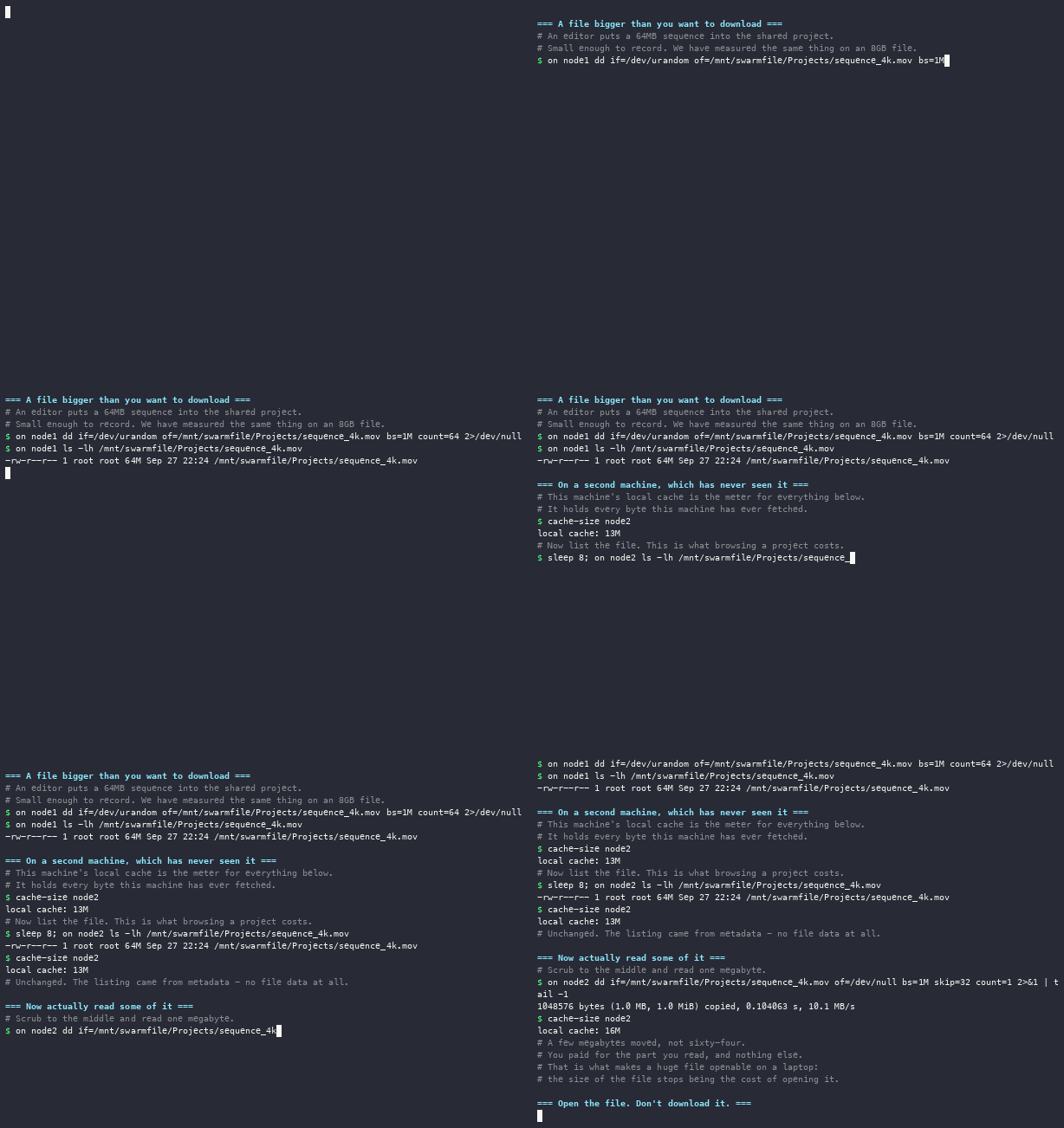
The recording above is the whole idea in three commands: listing a file costs nothing, and reading part of one costs that part. Scale it up and it is why a 200 GB sequence opens on a laptop with 40 GB free. Saving is asynchronous: a write returns as soon as it's queued, not once it's fully uploaded. A durable local upload queue handles the actual transfer in the background, with automatic retry on failure.
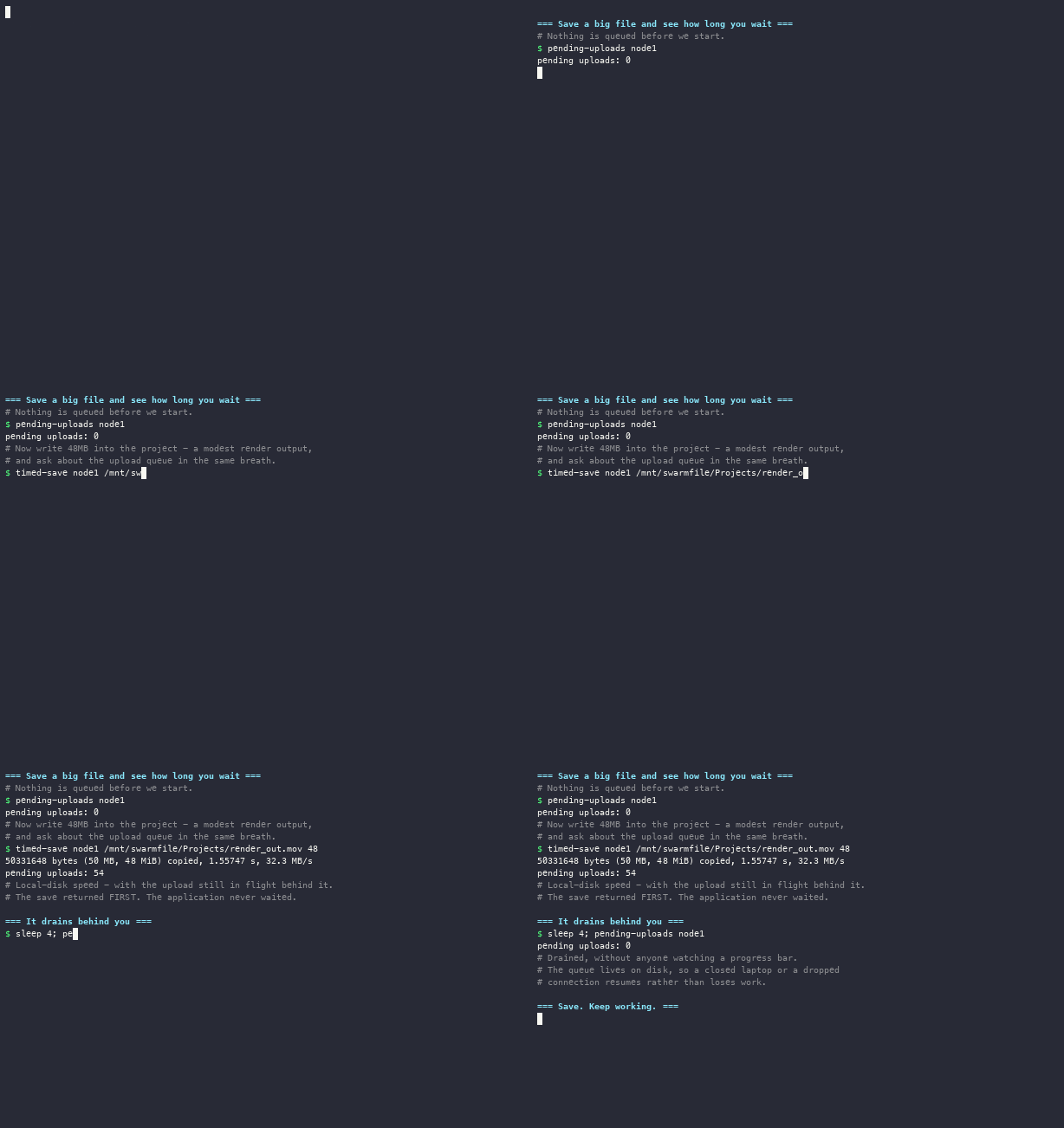
That recording is the same point from the writing side: the save returns at local-disk speed with dozens of blocks still queued behind it. Because the queue is durable, it survives a restart or a dropped network connection - pending uploads resume automatically rather than being lost. You are never blocked waiting for a save to finish uploading before you can keep working.
Reading the sync status#
The Desktop App's header keeps one line of truth about that queue. While work is in flight it says Syncing N - N counts the work still on its way to the hub, one per save (a 40 GB save counts once, not once per block): saves whose bytes are still uploading, new files whose creation hasn't been confirmed yet, and saves whose bytes are already up but whose commit hasn't landed. Synced means the queue is empty, not merely that a transfer looks quiet: a save whose commit is still being retried keeps the header at Syncing until it lands. A busy hub or a sign-in that has lapsed only pauses the queue; neither uses up a save's retries, so a save doesn't give up while you sign back in.
Three of those states are worth knowing by name:
- Waiting on plan - everything left is a save the hub is refusing on plan grounds, almost always storage (the org's allowance is full) or the org's spend cap. The retries are automatic, but nothing moves until the limit is raised; a quota/billing-block notification tells you which limit, and the plan panel shows the allowance. An owner or admin raises the spend cap under Billing → Spend cap.
- N changes not syncing - the hub keeps refusing these saves for another
reason, so retrying isn't making progress. They're safe on this computer and
Swarmfile keeps trying; the attention indicator points to the Status pill
in the header, which opens the panel showing the hub's reason. If the hub refused a save because part of its
content never arrived, Swarmfile re-sends that content from this computer on
its own before asking you for anything. The Status panel lists each file that
is still stuck - why, and for how long - with Discard this change…, which
drops the unsynced change and puts the file back to its cloud version. That
can't be undone, so it asks first. From a terminal:
swarmfile sync stuckandswarmfile sync discard <entry-id>. - N changes failed - some work stopped retrying on its own. The header's attention indicator names each one, and the banner above the file list offers Retry; an upload that failed can also simply be saved again. On Windows, saving the file again also clears the error badge Explorer shows on it.
The header counts the project you're looking at. Saves you made in another
project keep uploading in the background after you switch away from it, and
the Status pill adds N saving in other projects (or names the project when
only one has saves left) until they land. This project can read Synced
while that's true. A change in another project that the hub is refusing is
named there too, and stays on this computer until it's resolved in that
project. swarmfile status prints the same: its pending uploads line adds
"(N more in other projects)", followed by one line per project with its saves
still uploading or held.
A file you create is listed in the Desktop App immediately, before the hub has confirmed it: the row reads Syncing - this one isn't on the hub yet until the create lands (seconds on a healthy connection), and you can already rename or delete it from the app - applied on this computer, not waiting for the hub. A create the hub refuses but holds - root-create authority on a protected project, say - names the reason on the row instead and keeps retrying (see Permissions). A teammate's file that was just created shows Waiting for the hub until the hub confirms it (it can still be retracted by whoever created it). Moving or copying a file whose create hasn't landed, and moving, copying, uploading or importing anything into a not-yet-confirmed folder, wait for the hub.
While a large file is still uploading#
The queue draining in the background is invisible on a fast link. On a slow one it isn't: a very large file on a modest uplink can take hours or days to finish. Until it does, everyone else keeps reading the last committed version - the in-flight save never replaces it. (A file's first upload is the exception: it can be opened while it is still arriving - see Opening an in-progress upload directly.)
While that transfer is running, the file's page in the web dashboard shows an Uploading badge, along with which machine is sending it. The row itself still describes the version everyone can currently read - same size, same date, and Download still works - because a version in progress never replaces the one people are already using. Nothing becomes unavailable because a colleague started saving.
If you need part of that new version before it has all arrived, you can ask for it, and the uploading machine will send that part first:
swarmfile fetch ./Projects/reel-04.r3d --tail 209715200
That is the last 200 MB of a file still in transit. The request travels to whichever machine is uploading, that machine moves the blocks covering your range to the front of its queue, and you get them in roughly the time it takes to send that range - rather than waiting out the whole file. Uploads are sent in order from the start of the file, so without asking, the end is the last thing to arrive.
It is worth knowing what this does and doesn't do. It changes which bytes arrive first, not how fast the link is: the last 20% of a 5 TB file is still 1 TB, and 1 TB still takes as long as 1 TB takes. What it removes is the wait for the other 4 TB you didn't need.
The bytes land in your local cache, pinned so they aren't evicted before you
open the file. Release them with swarmfile hydrate release when you're done -
see the CLI reference - or delete them outright with
Free up space. Reading the file normally through
the mount is unaffected and gives you the committed version - unless the mount
has been opted into streaming, below.
Watching a file as it uploads#
A single range is the right shape for "give me the last 200 MB". It is the
wrong shape for watching, because a viewer moves: it plays forward, and it
seeks. --follow tracks that.
# Start following from the beginning
swarmfile fetch ./Projects/reel-04.r3d --follow --version pending

# …and tell it where the viewer has got to
swarmfile fetch-seek 5000000
swarmfile fetch-status
Instead of completing at a fixed range, a follow job keeps a buffer ahead of
wherever the reader is and re-targets when it moves. The uploading machine is
told about the new position immediately, and - this is the part that matters -
the new request replaces the old one rather than queueing behind it, so it
stops working on the stretch you scrubbed away from. A follow job ends on its
own when it reaches the end of the file, or after five minutes with no
fetch-seek - a status that stops advancing means it finished, not that it
broke.
How far ahead it buffers is measured, not configured: the read position's own
rate of advance is the consumption rate, so a 6 Mbit/s proxy gets a small
window and a 200 Mbit/s master gets a proportionally larger one, both covering
the same number of seconds. SWARMFILE_STREAM_BUFFER_SECS sets that number
(default 30). A seek is not mistaken for playback.
Opening an in-progress upload directly#
Everything above puts bytes in the cache. There is also a mode where a file that has never finished uploading is simply openable - it appears at its full eventual size and reads work, waiting briefly where the bytes have not landed yet.
This is always on. A read into a range that hasn't arrived has to wait, and
a filesystem operation that waits too long doesn't stall one read - it takes
the whole drive with it. The wait here is strictly bounded (15 seconds, see
SWARMFILE_STREAM_READ_WAIT_SECS) and a read that outruns the upload returns
"try again" rather than an I/O error, precisely so an application doesn't
conclude the file is damaged. See the config
reference for the full behavior.
Two things to know about the scope:
- It applies only to files with no committed version yet - a new master landing for the first time. A file you are already reading never changes size or content underneath you because somebody started a new save. That is the same rule the rest of the product follows, and it matters more than the feature does.
- If the uploading machine is on your LAN, it will serve those blocks to you directly, from its own disk, before they have reached the cloud at all. Across the internet it won't: that would put every block on the same congested uplink twice. Direct serving also requires the project to be encrypted or public - a private project's plaintext blocks are never handed out peer-to-peer; a public project's cleartext blocks are already anonymous-readable, so they are. Where blocks aren't peer-servable, in-flight reads wait for the cloud like any other.
The real limit. None of this makes the link faster. It makes the right bytes arrive first. A 4 TB file on a 100 Mbit/s uplink delivers about 12 MB/s however well it is ordered - comfortable for a proxy, not for a full-resolution master. The reliable version of this workflow is "watch the proxy while the master uploads", and on a LAN, where the uploader's own disk is the limit rather than its uplink, considerably more than that.
Freeing up space#
Everything you open stays in a local cache so the next read is instant, and the cache trims itself when it reaches its size limit. The first read of a cloud-only file is the one exception: the engine fetches on demand and reads ahead as playback advances, so a large media file can take a few seconds to settle while it builds that lead - and it only ever pulls the byte ranges you touch, never the whole file. Once those bytes are cached, the file is local-fast like any other.
To make room on purpose - or to hand a laptop's disk back before traveling - use Free up space. It deletes the downloaded copy so the file is cloud-only on this computer; the file stays listed and downloads again the moment something opens it. The file list shows that state beside the size: a quiet cloud tag (or partly local once some of it is cached) marks rows whose full size is on the hub, not on the disk.
- A file or folder: in the Desktop App, open the row's menu and choose Free up space. On Windows, you can also right-click it in Explorer and choose Swarmfile → Free up space.
- The whole project: in the Desktop App, open ⋯ Project actions on the active project in the left rail and choose Free up space (whole project)…. It shows roughly how much it will free before you confirm, and it also clears older versions of files that are still cached.
- From a terminal:
swarmfile hydrate free-space [path]; add--dry-runto see what it would free without deleting anything.
It is safe to run at any time:
- Changes that haven't synced yet are never touched. A file with a save still on its way to the cloud is skipped, and the result says how many were kept.
- Make available offline is turned off for what you free up, since keeping it offline and freeing its space contradict each other.
- Content something else is holding stays, such as work staged in a changelist, a Pack & Go reservation, or a file that is open right now. The result counts these as still partly on this computer.
Executable files#
A file can be marked executable: a script, a build tool, anything you run with ./name. On macOS and Linux, chmod +x on the drive sets it and chmod -x clears it; the drive shows executable files as 0755 and other files as 0644. Windows has no executable bit, so edits there leave the flag as it was. From any platform, swarmfile chmod +x <path> (or -x) sets it. The flag syncs to everyone like any other change, works offline (it's sent when you reconnect), survives safe-saves that replace the file, and becomes mode 100755 in a git clone. On macOS another machine's change can take a couple of seconds to show, the length of the system's file-attribute cache.
Windows alternate data streams#
On Windows, NTFS alternate data streams (file.ext:streamname) are supported on the mount: applications can create, read, write, enumerate and delete them, a stream's content travels the same upload and commit pipeline as file content and syncs to other clients, and a stream survives a copy or a rename of the base file. The one exception is Zone.Identifier - Windows' Mark of the Web - which stays on the machine that wrote it and never syncs (see Sync Exclusions). Renaming a stream on its own is refused, and Windows extended attributes are a separate mechanism and aren't implemented. See Filesystem Compatibility for the verified rows and remaining gaps.
Deleting#
Delete from the drive exactly as you would any other file - your file manager, or rm. Deleted files go to Trash rather than disappearing, and are restorable for as long as your organization's retention window allows: see Trash, History & Rollback.
Two behaviors worth knowing. On the mounted drive a folder is removed only once it's empty: your file manager, rm -r and rmdir /s empty it for you, one file at a time (PowerShell's Remove-Item -Recurse is a known non-starter through the mount - use rmdir /s or Directory.Delete there), while a plain non-recursive delete of a folder that still has files is refused, as on any disk. In the dashboard, deleting a folder removes its contents with it in one step (they all go to Trash together), so the confirmation there names what's inside; a very large folder still leaves the list at once, the delete showing progress in the toast while its contents follow as a background job. Restoring a folder you deleted from the drive offers its files back too; see Trash, History & Rollback. And if a file is open or locked by someone else, the delete is refused rather than queued: your file manager reports it, and the Desktop App's Presence view shows who has it.
Applied immediately, confirmed in the background#
Renaming or moving a confirmed file, or deleting a file or empty folder, takes effect on your machine at once, so a slow or briefly unreachable link can't stall it. The change is sent in the background and shown as a lightweight overlay until the hub confirms it, then re-verified and refreshed in place. Another machine that has already received the change shows the new name right away too, with that row marked Waiting for the hub instead of Synced until the confirmation lands; one that hasn't received it yet keeps the old name until then. Unconfirmed work is held and retried rather than dropped; if the hub refuses it (for example, you don't have write access), it's retracted and the entry returns. A refused save-by-replace (an app writing a temporary file and renaming it over the original) brings the original back with your unsynced edits to it intact and readable at once. The dashboard's history, Trash, merge-request and RFI views catch up as it lands. The behavior is on by default; an operator can turn it off with deferred_namespace: false in the engine config (SWARMFILE_DEFERRED_RENAME=0), which makes these operations wait for the hub again.
Saves project the same way. Once a local flush commits, the update reaches other machines by gossip before the hub round-trip confirms it, and a teammate's row shows Waiting for the hub - with the size you saved in its tooltip - as soon as the projection arrives. The file's content is the exception: a projected version is display-only, so every machine keeps reading the version the hub has confirmed until the confirmation lands, and an abandoned save is retracted rather than served. Queued saves refresh on a 60-second loop. Size and modification-time display still come from the hub. A machine can be told to fetch a projected version early: Settings → Prefetch projected updates (off by default) warms the new version in the background so it opens immediately once the hub confirms it.
Presence#
The dashboard shows a real-time "who's editing what" indicator. This is tied to the entry lock lifecycle, not a free-running heartbeat - it reflects files that are actually open and locked, not just which teammates are online. If presence shows someone on a file, they hold (or recently held) a lock on it. This is the authoritative "who has this file" signal: it means a real Swarmfile lock exists, and writing is genuinely blocked while it does. A teammate appears when they first change a file and drops off when they close it - an app that opens a file read-write only to show it (QuickTime Player opens every movie that way) takes no lock and never appears. A dashboard action that locks a file only briefly, such as rolling back a version, never shows as editing. When a teammate is creating many files at once, the Files view also shows "N files arriving from …" until the hub has recorded them all. In the Desktop App, a presence row that arrived as a LAN hint from a teammate's engine rather than in the latest hub snapshot carries a muted LAN marker, so a hint-derived "editing" state is visibly distinct from hub truth. Presence is only in the signed-in dashboard, never on public project pages or share links.
Separate from locks, a teammate can opt in to share what they are viewing. With Settings → Share what I'm viewing on (off by default, per machine), a file they have open right now shows a muted viewing marker on your rows and in the Presence view - alongside, not instead of, the lock-derived editing state, and it never blocks anyone. Viewing hints travel peer-to-peer only: the hub never stores them, they expire on their own (after roughly 90 seconds), and they clear as soon as the teammate moves on. Several viewers of one file roll up into one badge with their names in its tooltip.
"In use" signal (Windows)#
There's a second, softer indicator that answers a related but different question: not "who holds a lock" but "is some Windows application sitting on this file right now". Many desktop apps - Excel, and a number of CAD tools - open a file for writing and deny write-sharing to everyone else while they have it open, without ever taking a Swarmfile lock. When the Windows drive sees an open like that, it reports it best-effort so teammates get a heads-up before they start editing the same file.
Where it shows up: an informational ℹ️ in use pill in the web dashboard's Files table, and in the Desktop App's file list, naming who has the file open and on which machine. It's --info-toned on purpose - a note, not an alarm.
Two things to be clear about:
- The pill is a heads-up; the enforcement is separate. The pill itself doesn't block anything - it's a best-effort display. But the open it reflects (write intent with write-sharing denied) is exactly what worksharing enforces across machines: on Windows, a second machine that opens the file the same way is refused, so two people generally can't open the same central model for editing at once. The pill tells you; worksharing stops you. To reserve a file you aren't actively holding open in an app, use an entry lock, below.
- It is distinct from Presence. Presence (above) is driven by Swarmfile's own explicit lock lifecycle. The "in use" pill is a passive read of what a Windows app is doing to the file - it has no lock lifecycle of its own; the cross-machine blocking rides on the underlying open (see worksharing, above). The two can disagree (a file can show "in use" without an explicit entry lock, and vice versa), and that's expected.
Because it's best-effort and poll-driven, it's not instantaneous: the dashboard and Desktop App refresh it about once a minute, and a file that stays open unusually long can eventually drop off the signal even while it's still open. Treat it as a hint, not a source of truth. It's Windows-only - other platforms don't surface this open mode.
Entry locks#
Locking a file blocks other users from writing to it until you release the lock or it expires. There are two kinds, and they behave differently:
- The automatic entry lock a file takes from the moment your application first writes to it until it closes the file. Opening a file read-write does not take it on its own; the first write, truncate, or overwrite does, and if someone else holds the file that write is refused ("try again") rather than the open. On Windows, opening a file for writing while someone on another computer is editing it is refused at the open instead, as "file in use", which apps report the way they report any file open elsewhere. It has a 60-second TTL and is renewed with a heartbeat while the file stays open - you don't need to manually extend it. If your app crashes or your machine loses connectivity, this lock expires on its own within 60 seconds rather than staying stuck. If the lock is lost while the file is still open (it expired, or someone else took it), macOS and Linux refuse the next save - the app sees a generic
EIO("Input/output error"); the Desktop App names the real reason. Windows keeps the save on your computer instead. It syncs normally if the lock can be taken again; if the file was changed elsewhere in the meantime, your save becomes a conflict to resolve rather than overwriting the other version. Two saves racing on the same file with no lock held never silently overwrite each other either: the losing version is kept - as a parked conflict to resolve, or as a copy beside the file (report (conflict-1a2b3c4d).pdf; a dotfile or extension-less name just gets the suffix) - so no edit is dropped. (The deferred-namespace opt-out changes when the racing save is applied - synchronously instead of through the queue. In that mode a safe-save aside still lands its copy, but a racing rename surfaces as a save error instead of a copy, and the next attempt tries again - nothing is ever dropped silently.) Until it does one or the other, the Desktop App's file list marks the file as kept on this computer, and counts it under the files that need attention. - An explicit edit lock you take yourself.
swarmfile lock <path>is long-lived - 7 days by default, up to 30 - and its lease is renewed while you hold it. Agit lfs locktakes a fixed 30-day lease that nothing renews, so a lapsed one releases itself; take it again if the work outlives it. Both last until you release them or the lease lapses; see Entry locks in the CLI reference.
A bulk Pack & Go reservation is a different mechanism: it reserves a whole folder or project for offline work rather than locking one file, though it blocks writes the same way while it's active.
The lock is keyed to the user and machine, not to the mount: two drives of the same engine on one computer share that identity, and share the lock: closing the file in one drive doesn't release it while another drive still has it open. An entry lock taken through one drive does not by itself keep a sibling drive out. When several drives on one machine must not edit the same file - a fleet of agents, say - open them with exclusive-write mode.
The web dashboard's project-scoped Locks tab (admins and owners only) lists every file currently locked in the project - standard and 30-day edit locks alike - with who holds each one, and lets an admin release their own lock from there directly. A plain member releases their own edit lock the same way they took it - close the file (the short-lived automatic kind clears on its own) or swarmfile unlock <path> for an explicit edit lock - rather than through the dashboard. Releasing someone else's lock, admin or not, still goes through the request-unlock flow below.
Asking someone to release a lock#
If you need a file someone else is holding open, right-click it in the web dashboard's Files view and choose Request unlock (also reachable from the Windows Explorer Swarmfile ▶ submenu on a mounted drive, or from the CLI with swarmfile unlock-request create <path>). The current holder gets a notification - in-app only, not emailed - with a Grant/Deny right on the notification row, whether that's a modal in the Desktop App naming who's asking or the web dashboard's Inbox (or, from a script, swarmfile unlock-request list/respond to see and answer pending requests headlessly). They can release the lock from there, or ignore it and let it expire on its own the normal way - a short-lived entry lock clears when they close the file or within 60 seconds if their app or machine has gone away; an explicit edit lock runs out at the end of its lease (up to the 30-day maximum). There's no force-release button anywhere - asking is the mechanism, full stop; a still-pending request you made can be withdrawn from the same file's right-click menu (Cancel unlock request) or with swarmfile unlock-request cancel <request-id>. The one exception is the git-LFS surface: an entry lock and a git lfs lock on the same file are the same server-side lock, so a git lfs unlock --force can break another user's lock (git-LFS's own --force, not a drive/dashboard action).
Byte-range locking#
Entry locks cover a whole file. For native worksharing apps that need to lock just part of a file - the way a Revit-class BIM tool locks the elements one person is editing without blocking everyone else out of the same model - Swarmfile exposes a separate, lower-level byte-range locking API. This is what a CAD/BIM plugin integration would call directly. The API is enabled only on projects set to the Revit-worksharing project type - at creation, or later from Project settings or swarmfile project set-type revit_worksharing (see Worksharing); the engine runs the byte-range lock manager only there, and other projects refuse those requests. The swarmfile-brlock CLI is the reference client for the byte-range lock API.
File and folder watch#
Watch is distinct from the general "someone else changed a file" bell notification you see for activity across a project. Watch lets you subscribe to a specific file or an entire folder and get notified when it changes - useful for scripting a rebuild step or keeping an external tool in sync with a subtree of a project without polling it.
If the drive stops responding#
Occasionally the drive can stop answering: files won't open, a Finder or Explorer window sits there, and the application waiting on it may not even force-quit cleanly.
That behavior is deliberate, favoring write safety. The drive is mounted to wait rather than to fail, because a filesystem that returns an error partway through a write can leave an application believing a save succeeded when it didn't - which on a multi-hundred-gigabyte project file means silent corruption. The cost of that choice is that a drive which stops answering waits indefinitely instead of erroring.
Swarmfile watches for this and reconnects the drive on its own where it can. While that's happening the Desktop App reports the drive as unavailable rather than continuing to show a healthy mount; when it reports the drive as available, it is.
When it doesn't clear by itself, open the Desktop App, go to Settings → Diagnostics, and use Repair drive (macOS and Windows; Linux has no in-place repair, so restart the engine or remount instead). It reconnects the drive in a few seconds and touches nothing else - your queued uploads are held in a durable local queue, so nothing waiting to upload is lost, and you don't need to quit and reopen Swarmfile.
If the drive keeps dropping instead of recovering - the Desktop App's "keeps disconnecting" card - it is usually a leftover mount from a killed session. The engine clears those automatically before each mount, so Repair drive normally reconnects it; if Diagnostics still reports a stuck mount, only a computer restart clears it (the state lives in the kernel, not the install), and Reinstall… is for a genuinely broken install. For working out whether the underlying problem is your network, your account, or the service, run swarmfile doctor - its output is what support will ask for first.